Time Profile Management
Global Admin functions
These functions are available only to Global Admin users. If you are not a Global Admin, you can skip this section.
Use Time Profile Management to create and manage Time Profiles in SOC Manager®. Time Profiles define the days and times during which a key is authorized to access a lock.
Open Time Profile Management
From the Global Administration menu, select Time Profile Management. The Time Profiles screen opens.

View and Search Time Profiles
The Time Profiles screen displays existing Time Profiles.
The list includes:
- Time Profile: The name of the Time Profile.
- Time Zone: The time zone associated with the Time Profile.
- Delete: An option to delete a Time Profile that is not currently in use.
Use the Search field to locate an existing Time Profile. Paging controls are available when the list contains multiple entries.
Create a Time Profile
- From the Time Profiles screen, select New Time Profile.
- The Create Time Profile screen opens.
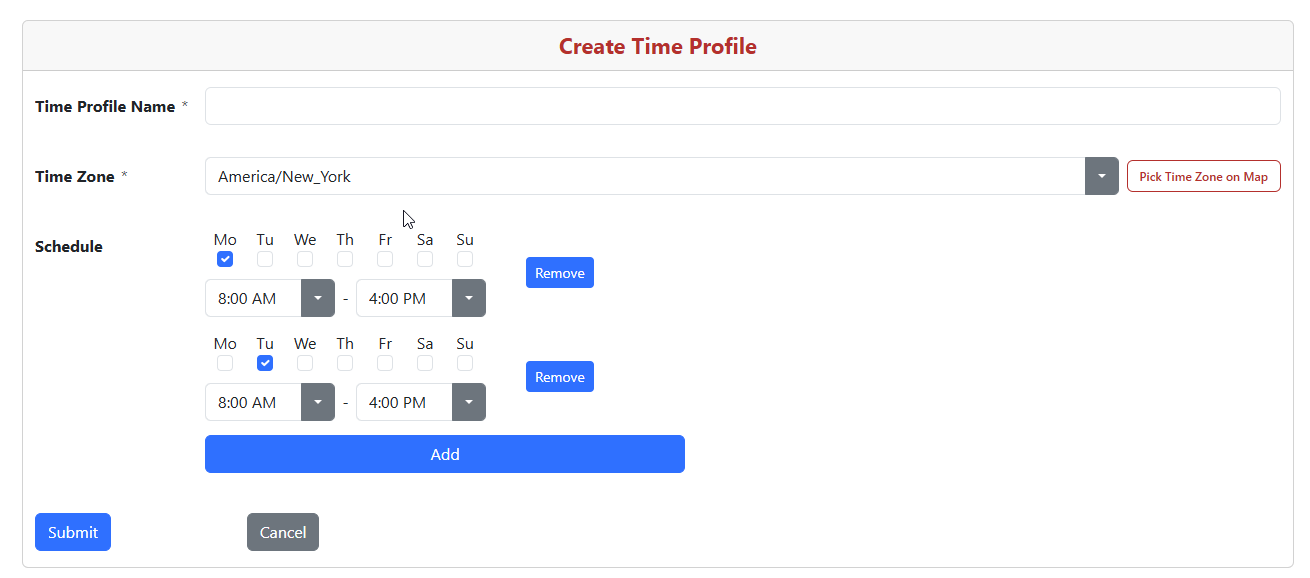
Time Profile Details
Complete the following required fields:
| Field | Description |
|---|---|
| Time Profile Name | Enter a descriptive name for the Time Profile. |
| Time Zone | Select the time zone that applies to the Time Profile. |
You can select a time zone from the dropdown list or use Pick Time Zone on Map to choose a geographic location.
Configure the Schedule
The Schedule section defines when access is permitted.
For each schedule entry:
- Select the applicable days of the week using the Mo, Tu, We, Th, Fr, Sa, and Su checkboxes.
- Select the Start Time.
- Select the End Time.
A single schedule entry can apply to one or more days of the week.
Add Additional Schedule Entries
A Time Profile can contain up to 7 schedule entries, allowing different days and access times to be defined within a single Time Profile.
- Select Add to create another schedule entry.
- For each entry, select the applicable days of the week and the start and end times.
- Select Remove to delete an existing schedule entry.
For example, a Time Profile could include:
- Monday through Friday: 8:00 AM to 5:00 PM
- Saturday: 9:00 AM to 12:00 PM
Maximum Schedule Entries
A Time Profile supports a maximum of 7 schedule entries. Use the Add and Remove buttons to manage the entries within this limit.
Save the Time Profile
After completing the required fields and schedule entries:
- Review the Time Profile settings.
- Select Submit to create the Time Profile.
- Select Cancel to return without saving.
Once created, the Time Profile is available for assignment to keys.
Editing Time Profiles
Current Limitation
Time Profiles can currently be created in SOC Manager® and assigned to keys. However, existing Time Profiles cannot be edited in SOC Manager due to a limitation in the iLOQ API.
If changes to an existing Time Profile are required, please contact your administrator for assistance.
Delete a Time Profile
To delete an existing Time Profile:
- Locate the Time Profile in the Time Profiles list.
- Select the Delete (trash can) icon next to the Time Profile.
- Confirm the deletion if prompted.
Time Profiles in Use
A Time Profile cannot be deleted while it is in use.
Before deleting a Time Profile, ensure it is no longer assigned or referenced elsewhere in the system.