Update a Key
Overview
Use Update Key to modify the Access Profiles assigned to an existing Phone Key or Key Fob in SOC Manager®.
Access Profiles determine which locks the key can open. Updating a key allows you to add or remove access without revoking and reissuing the credential.
Access Changes
Removing an Access Profile may prevent the key holder from opening locks they currently use.
Verify the selected Person, key, and Access Profiles before updating the key.
Before You Begin
Before updating a key:
- Confirm the Site where the Person is assigned.
- Confirm that you have selected the correct Person and key.
- Determine which Access Profiles must be added or removed.
- If updating a Key Fob, have an active iLOQ S50 Phone Key available to complete the update.
1. Open Update Key
From the SOC Manager Home page, open the menu and select Maintenance, then select Update Key.
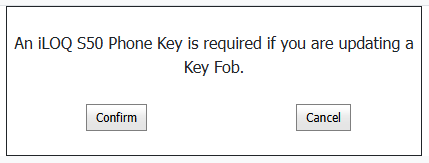
SOC Manager displays a message explaining that an iLOQ S50 Phone Key is required when updating a Key Fob.
2. Confirm Phone Key Availability
Select Confirm to continue to the Update Key form.
Select Cancel to stop and return without updating a key.
Updating a Key Fob
A Phone Key is required to complete a Key Fob update.
If a Phone Key is not available, select Cancel and obtain one before continuing with the Key Fob update.
3. Select the Key
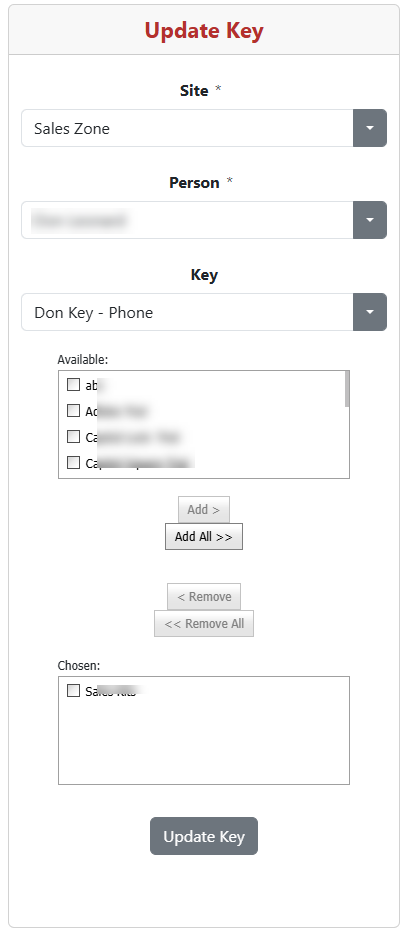
Complete the fields in the following order:
- Select the Site where the Person is assigned.
- Select the Person whose key will be updated.
- Select the Key to update.
Selecting a Site filters the list of Persons. Selecting a Person filters the list of keys assigned to that Person.
The Access Profiles currently assigned to the key appear in the Chosen list. Other Access Profiles available for assignment appear in the Available list.
4. Modify the Access Profiles
To add Access Profiles:
- Select one or more Access Profiles in the Available list.
- Select Add >.
To add every available Access Profile, select Add All >>.
To remove Access Profiles:
- Select one or more Access Profiles in the Chosen list.
- Select < Remove.
To remove every assigned Access Profile, select << Remove All.
Available and Chosen
Available lists Access Profiles that can be added to the key.
Chosen lists the Access Profiles that will remain assigned after the update.
5. Update the Key
Review the Access Profiles in the Chosen list, then select Update Key.
SOC Manager submits the updated access assignments for the selected key.
What Happens Next
For a Phone Key, the updated access assignments are delivered through the iLOQ system. The phone must have an Internet connection to receive updated credential information.
For a Key Fob, follow the on-screen instructions to transfer the update to the Key Fob using an iLOQ S50 Phone Key.
The key will use the Access Profiles shown in the Chosen list after the update has been completed.
Related Topics
- Issue a Phone Key
- Issue a Key Fob
- Re-Issue a Phone Key
- Revoke a Phone Key
- Return a Key Fob
- Manage Access Profiles