Return a Key Fob
Overview
Returning a Key Fob removes the Key Fob from the Person and deactivates the credential in the iLOQ locking system.
Use this function when a Person no longer requires the Key Fob, such as when:
- Access is no longer required.
- An employee or contractor leaves the organization.
- A temporary access assignment has ended.
- The Key Fob needs to be reassigned.
Revoke or Blacklist?
Revoke a Key Fob when access is being intentionally removed and the Key Fob is available to be returned.
Blacklist a Key Fob when the fob is lost, stolen, or may be in the possession of an unauthorized person.
If the Key Fob cannot be recovered and there is a security concern, use the Blacklist function rather than relying only on normal revocation.
Before You Begin
Before revoking a Key Fob:
- Confirm that you have selected the correct Person.
- Confirm that you have selected the correct Key Fob.
- A Phone Key must be available to complete Key Fob programming.
- If the Key Fob is lost or stolen, use the Blacklist function instead.
1. Open Return Key Fob
From the SOC Manager® Home page, select Return Key Fob.
2. Confirm Phone Key is Available
A Phone Key is required to complete the revoke Key Fob process.
If a Phone Key is available select Confirm, otherwise select Cancel.
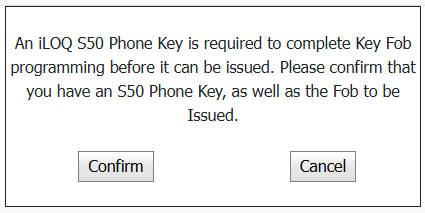
If Confirm is selected, the following form is displayed
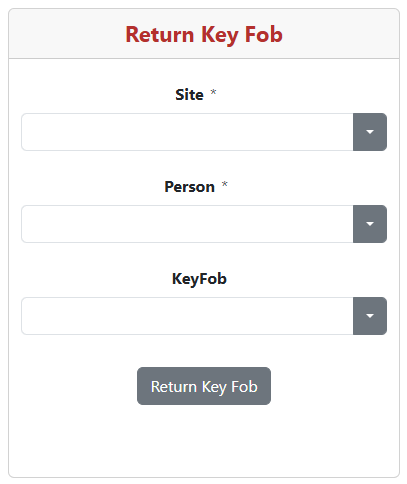
3. Select the Site
Select the Site where the Fob is located.
The Site acts as a filter for the Person list. This prevents you from having to search through a large organization-wide list of people.
4. Select the Person
Select the Person whose Key Fob will be revoked.
Once a Person is selected, the Key Fobs issued to that Person are displayed.
5. Select the Key Fob
Select the appropriate Key Fob to be revoked.
Verify the Key Fob
Verify that you have selected the correct Person and Key Fob before continuing.
6. Revoke the Key Fob
Select Return Key Fob.
SOC Manager will ask you to confirm the operation.
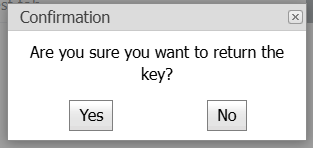
Select Yes to continue or No to return without revoking the Key Fob.
7. Confirm the Key Was Revoked
After the Key Fob is successfully issued, SOC Manager displays a confirmation message.
To complete the programming process, the revoked Key Fob must be updated using a Phone Key.
SOC Manager then asks you to verify that the Key Fob has been programmed.
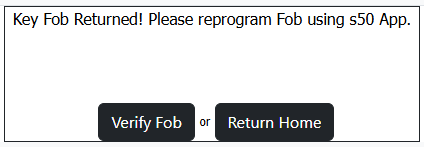
Selecting Verify Fob will verify that the Key Fob was programmed.
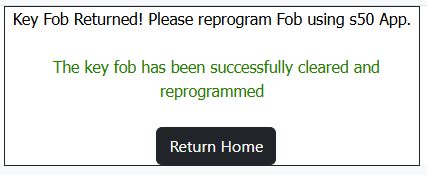
If successful, the following message is displayed.
If incomplete, the following message is displayed.
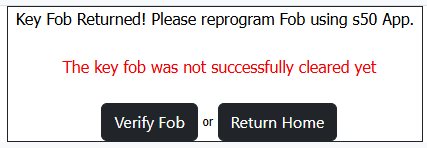
If not successful after 5 minutes of re-verification, please contact your Supervisor.
What Happens Next
After the Key Fob has been revoked, it is no longer assigned to the Person.
The returned Key Fob can then be made available for future assignment according to your organization's Key Fob management procedures.
Related Topics
- Issue a Key Fob
- Revoke a Phone Key
- Blacklist a Key