Re-Issue a Phone Key
Overview
Use Re-Issue Key to send a new registration link for an existing Phone Key in SOC Manager®.
Re-Issue Key performs the same function as resending a registration message in iLOQ Manager. It does not create a new key or change the Person's access rights.
Re-issue a Phone Key when:
- The Person has a new phone and needs to register the Phone Key on the new device.
- The original registration link has expired.
- The Person did not receive or can no longer find the original registration message.
- The iLOQ S50 app was reinstalled and the Phone Key must be registered again.
Registration Link Expiration
A Phone Key registration link is valid for five days.
If the Person does not complete registration within five days, use Re-Issue Key to send a new link.
Before You Begin
Before re-issuing a Phone Key:
- Confirm that the Person already has a Phone Key in SOC Manager.
- Confirm the Site where the Person is assigned.
- Verify that the Person's phone number or email address is current.
- Confirm how the Person should receive the new registration link.
1. Open Re-Issue Key
From the SOC Manager Home page, open the menu and select Maintenance, then select Reissue Key.
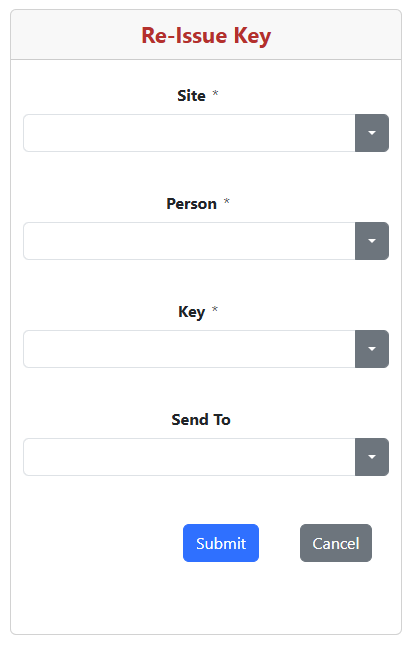
The Re-Issue Key form is displayed.
2. Select the Phone Key
Complete the fields in the following order:
- Select the Site where the Person is assigned.
- Select the Person who needs a new registration link.
- Select the Key to re-issue.
Selecting a Site filters the list of Persons. Selecting a Person filters the list of available keys.
3. Select Where to Send the Link
From Send To, select the delivery method for the new registration link.
The available delivery methods are based on the contact information associated with the Person.
Verify the Contact Information
Confirm that the selected phone number or email address belongs to the Person and is still current.
If the information is incorrect, cancel this process and update the Person before re-issuing the key.
4. Re-Issue the Key
Verify the Site, Person, Key, and delivery method, then select Submit.
SOC Manager sends a new registration message to the selected destination.
To leave the form without sending a new registration link, select Cancel.
5. Complete Registration
Have the Person open the new registration message on their phone and follow the link to complete registration in the iLOQ S50 app.
The Person must complete registration within five days.
Registration Message Not Received
Ask the Person to check filtered message locations, including the Spam folder and Unknown Senders or message filters on an iPhone.
If the link was sent by email, ask the Person to check the email account's junk or spam folder.
What Happens Next
After registration is completed, the existing Phone Key is available in the iLOQ S50 app on the Person's phone.
The Phone Key retains its existing access rights and validity settings. Re-Issue Key only sends a new registration link for the selected key.
Related Topics
- Edit a Person
- Issue a Phone Key
- Update a Key
- Revoke a Phone Key
- Troubleshoot Phone Key Registration