View the Change Log
Overview
Use Change Log to review the SOC Manager® update history.
The Change Log identifies the features, improvements, and administrative changes included in each SOC Manager release.
Each release is organized by version number and release date, with the newest release displayed first.
Before You Begin
No configuration is required to view the Change Log.
1. Open the Change Log
From the SOC Manager Home page, open the menu and select Maintenance, then select Change Log.
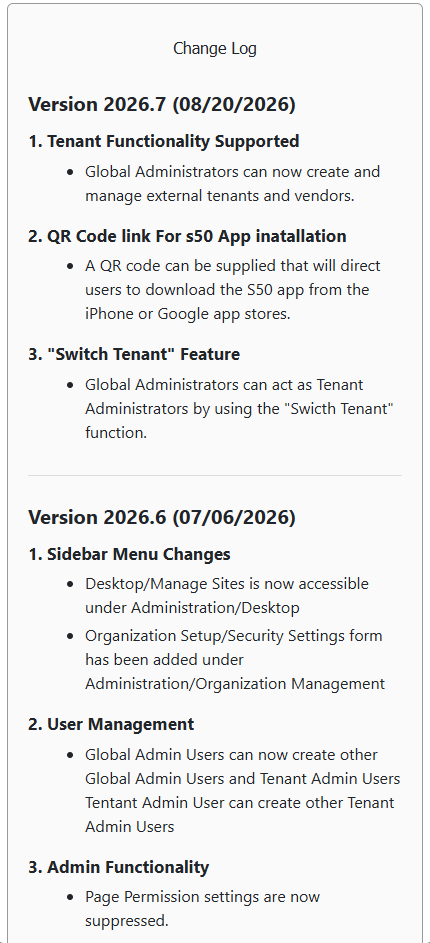
A partial view of the Change Log page is displayed.
2. Review the Update History
Scroll through the Change Log to review SOC Manager releases.
Each release includes:
- The SOC Manager version number
- The release date
- A numbered list of changes
- A description of each new feature, improvement, or administrative change
Newest Updates
The newest SOC Manager release appears at the top of the Change Log.
Use the version number and release date to confirm which update you are reviewing.
What Happens Next
The Change Log is for informational purposes only. Viewing it does not change any SOC Manager settings or data.
Return to the main menu when you are finished reviewing the update history.
Related Topics
- SOC Manager Overview
- Navigate SOC Manager
- Understanding SOC Manager Versions